
If you have already added your Nest thermostat to the SmartCocoon app but your fans are not working in sync with it, you may need to delete the Nest thermostat and add it again to refresh the connection.
Please note that deleting a thermostat will also remove all fans associated with it. To avoid losing your fan setup, please follow the steps below carefully.
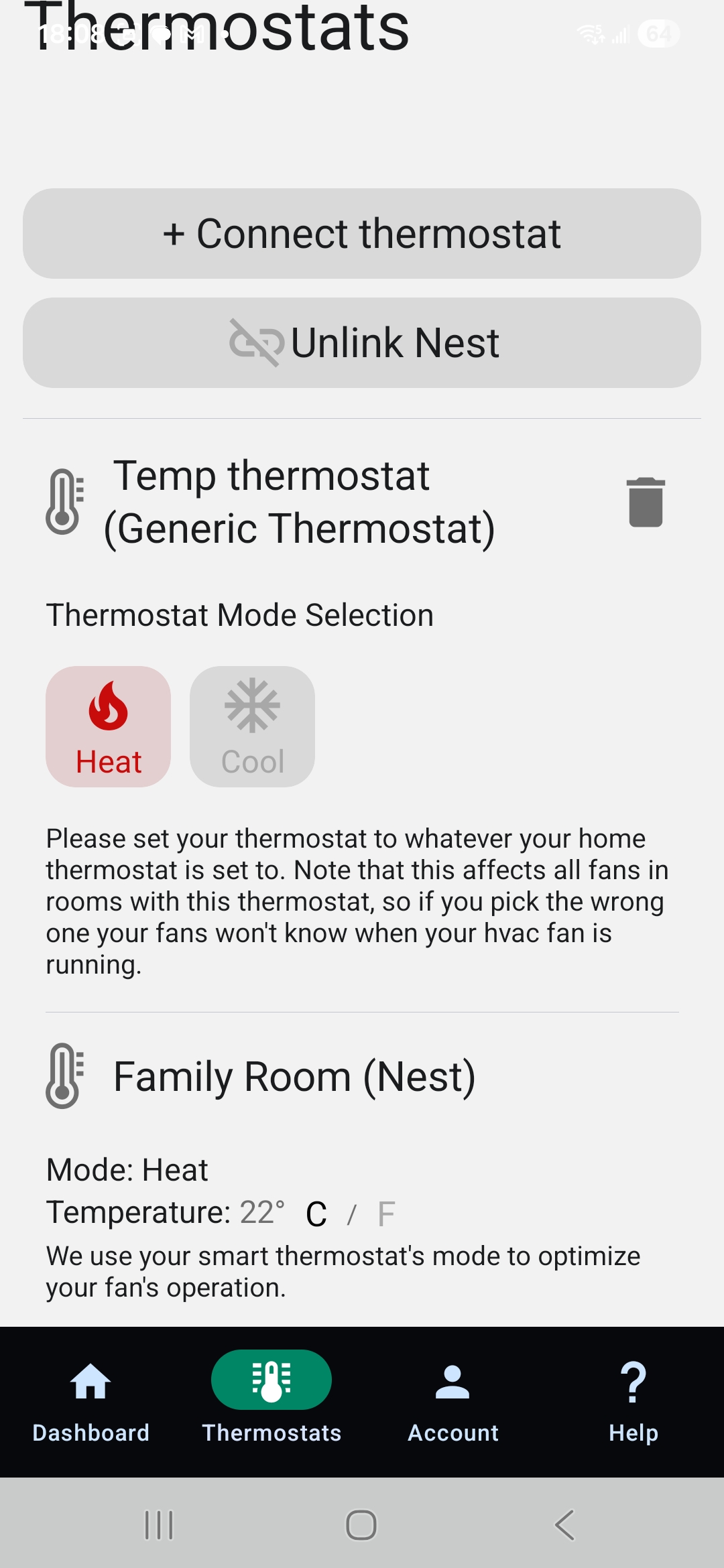
1. On the dashboard, tap “Thermostats”, then select “Connect Thermostat” and choose “Other Thermostat” to create a temporary (placeholder) thermostat.
You can name this thermostat anything you like—for example, we named it “Temp Thermostat.”
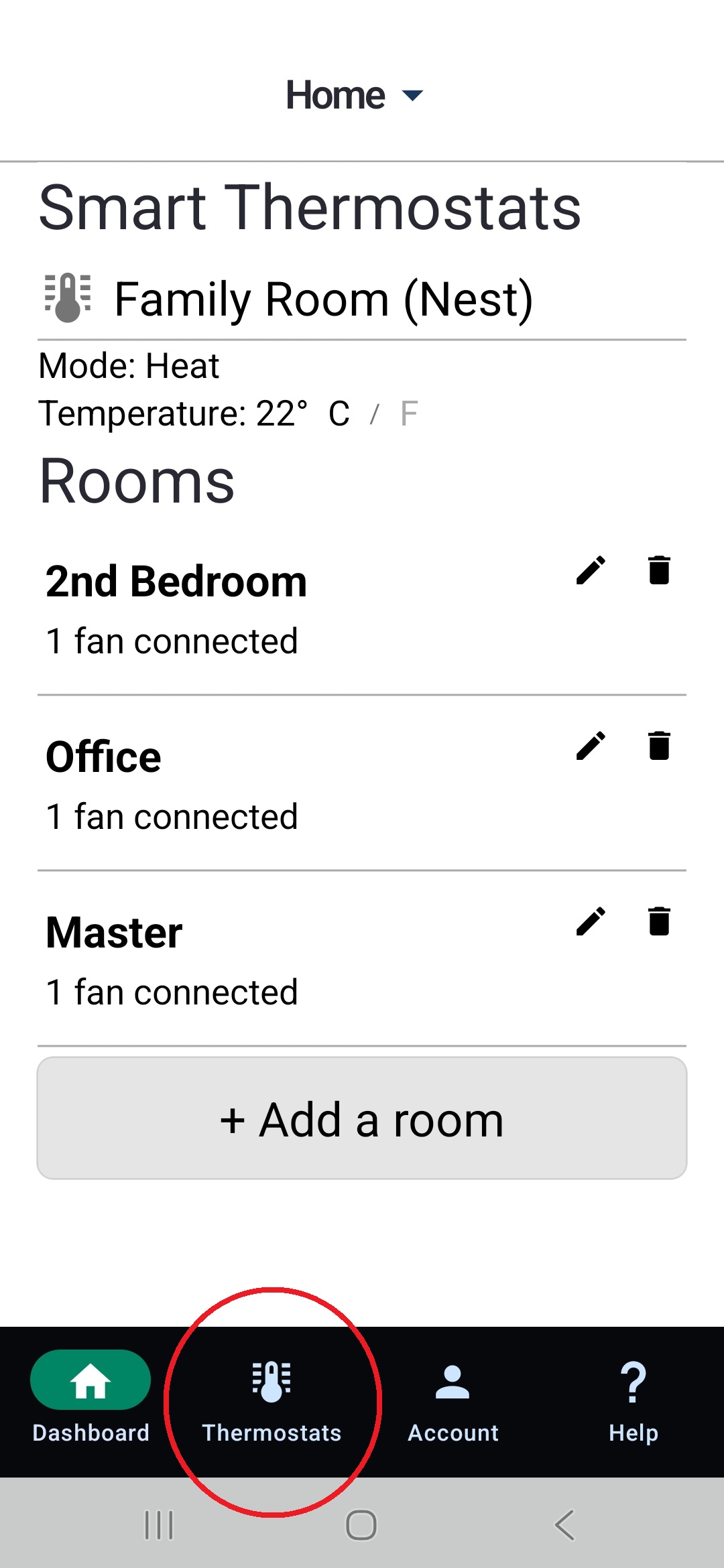
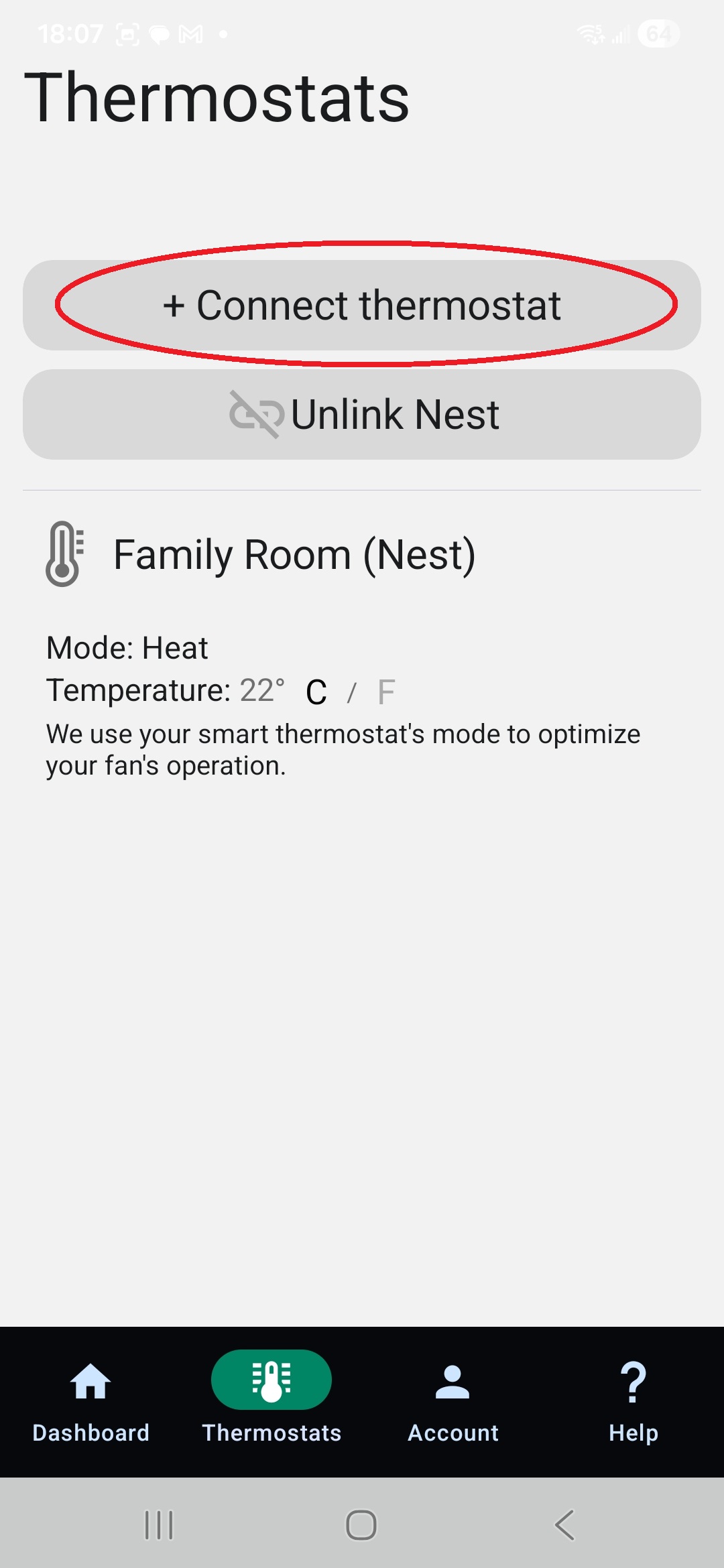
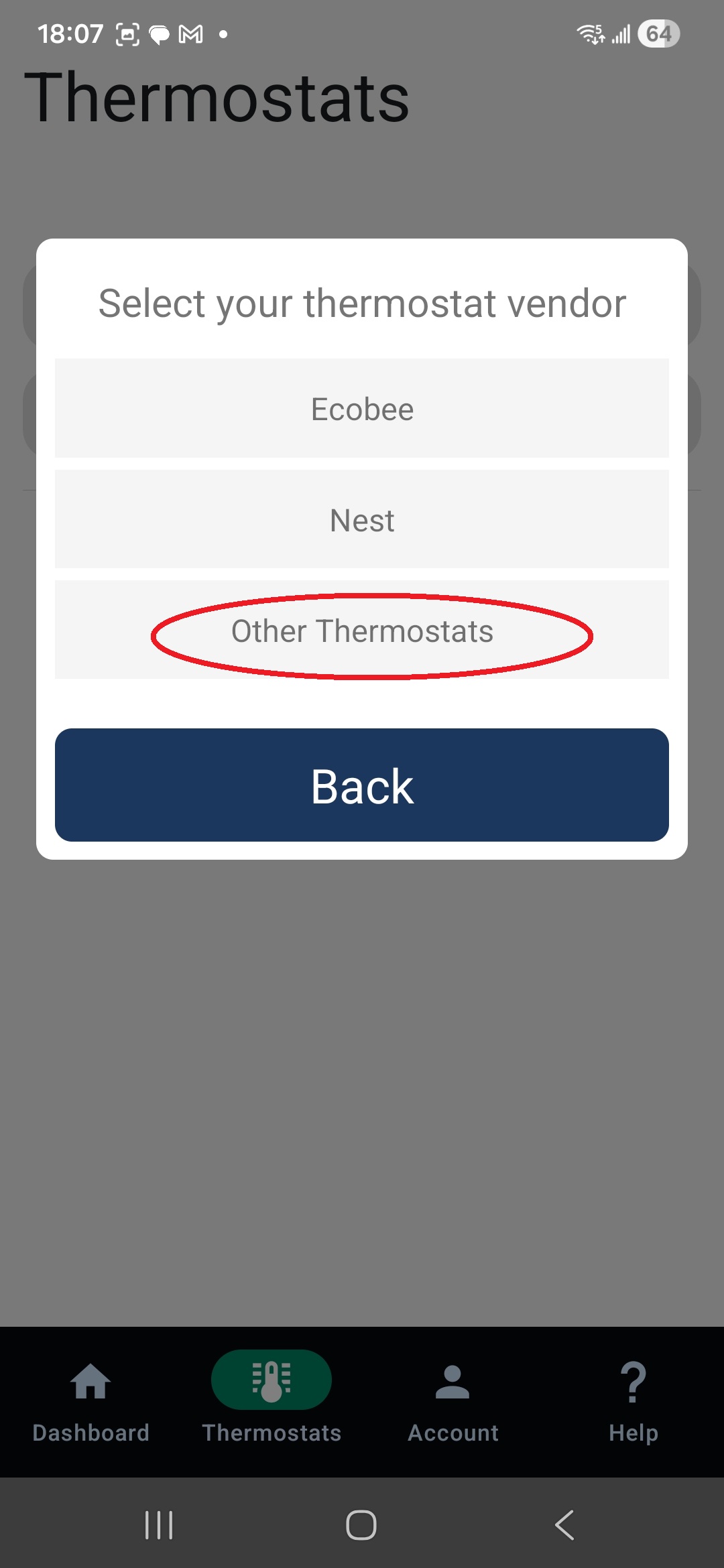
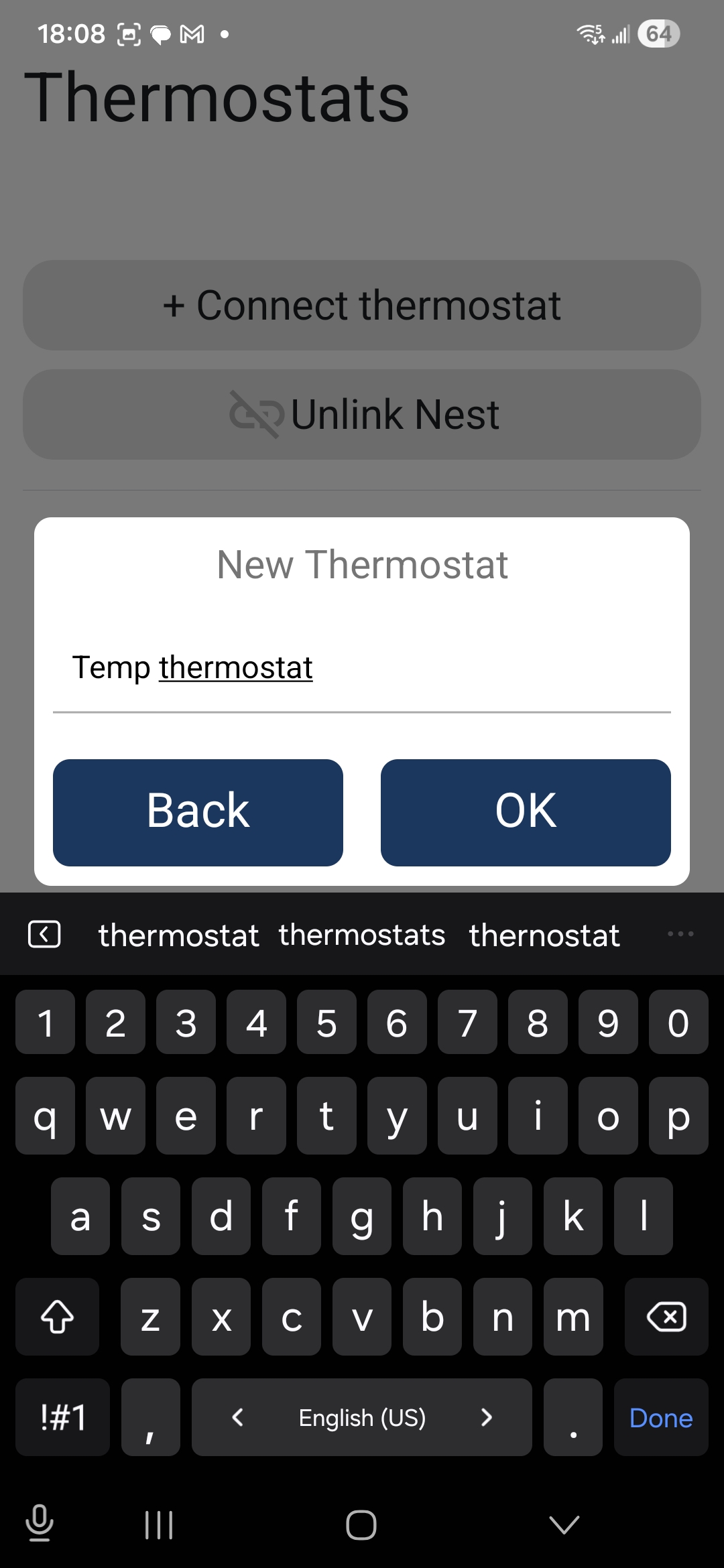
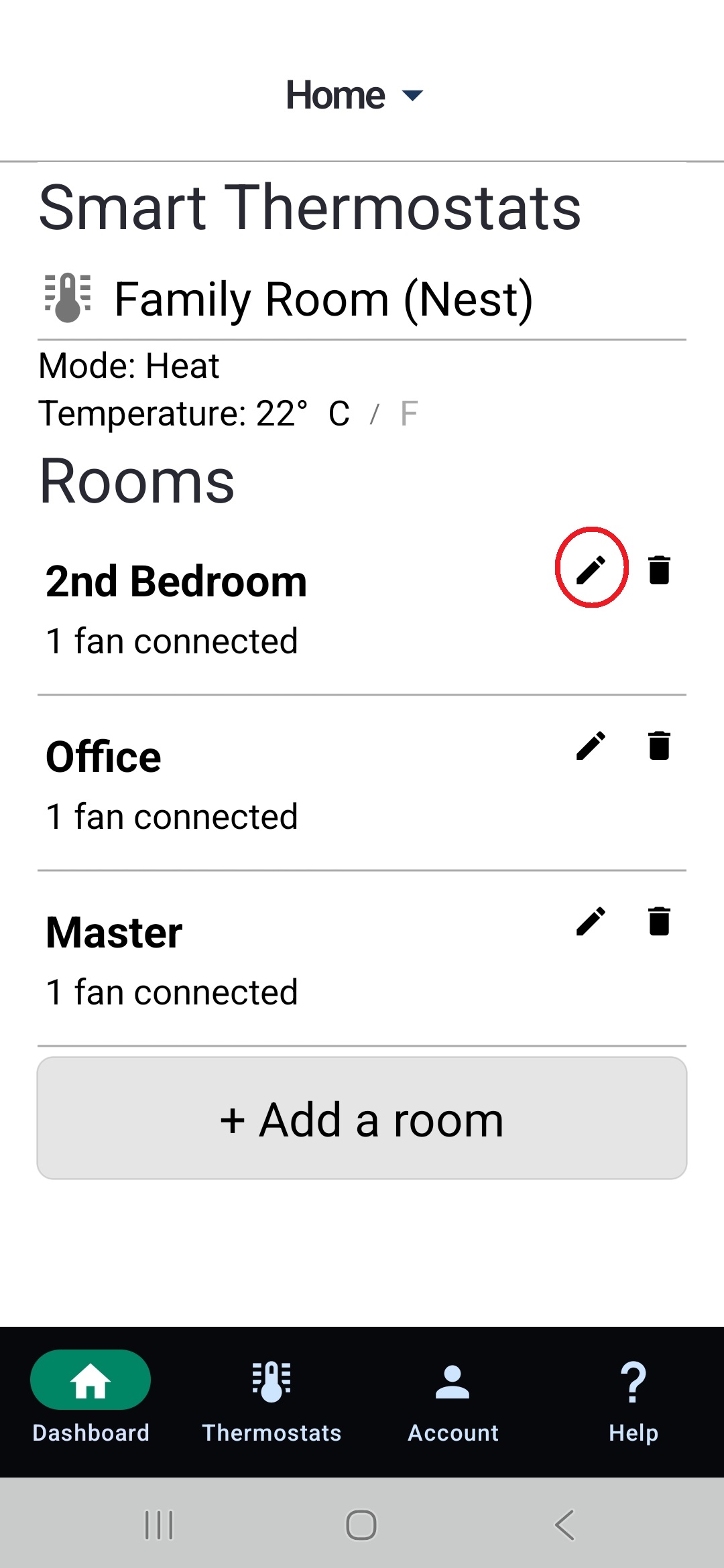
2. Return to the dashboard, where you can see all the rooms you previously created.
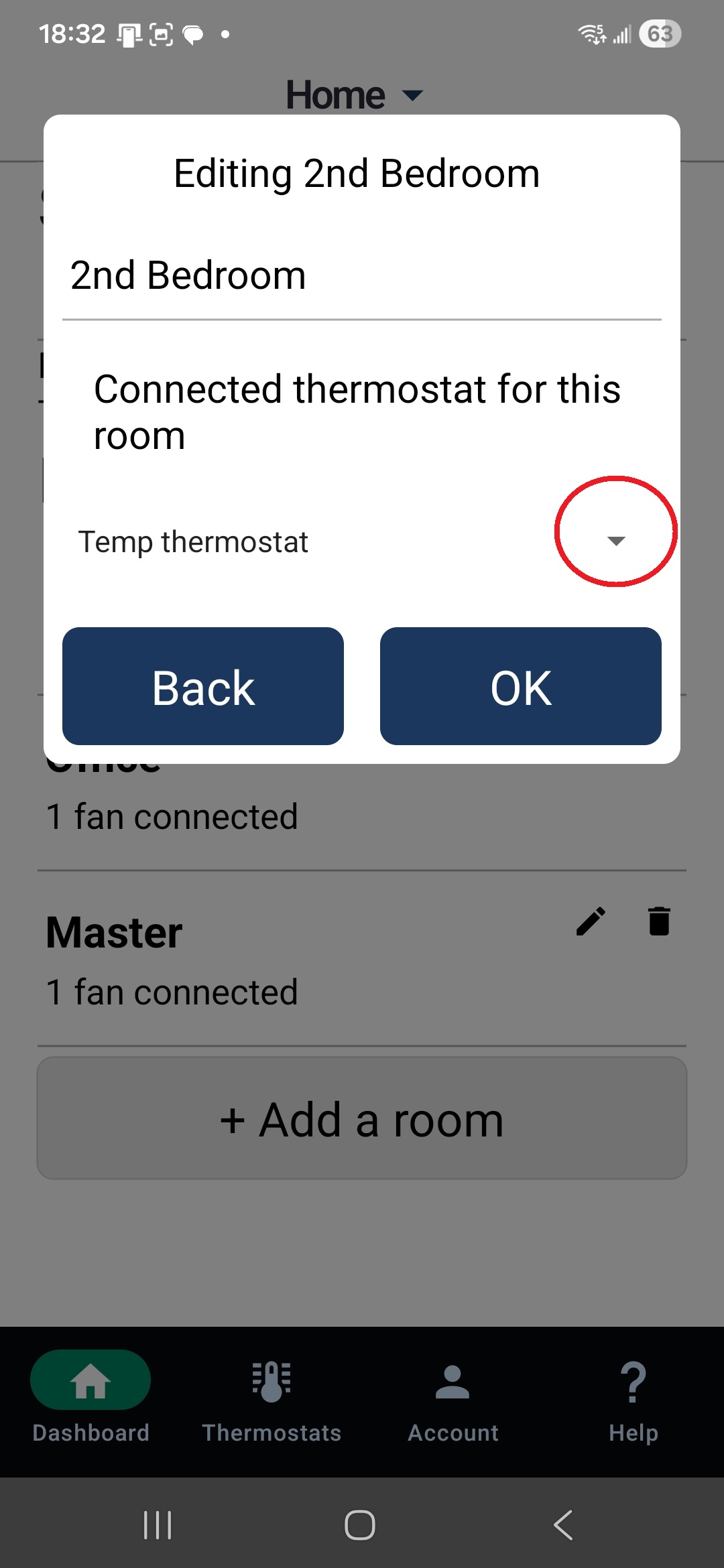
For each room, click the pen (edit) icon next to the trash can, then use the drop-down menu to change the connected thermostat from your Nest to the temporary thermostat you just created.
Tap OK to save the changes.
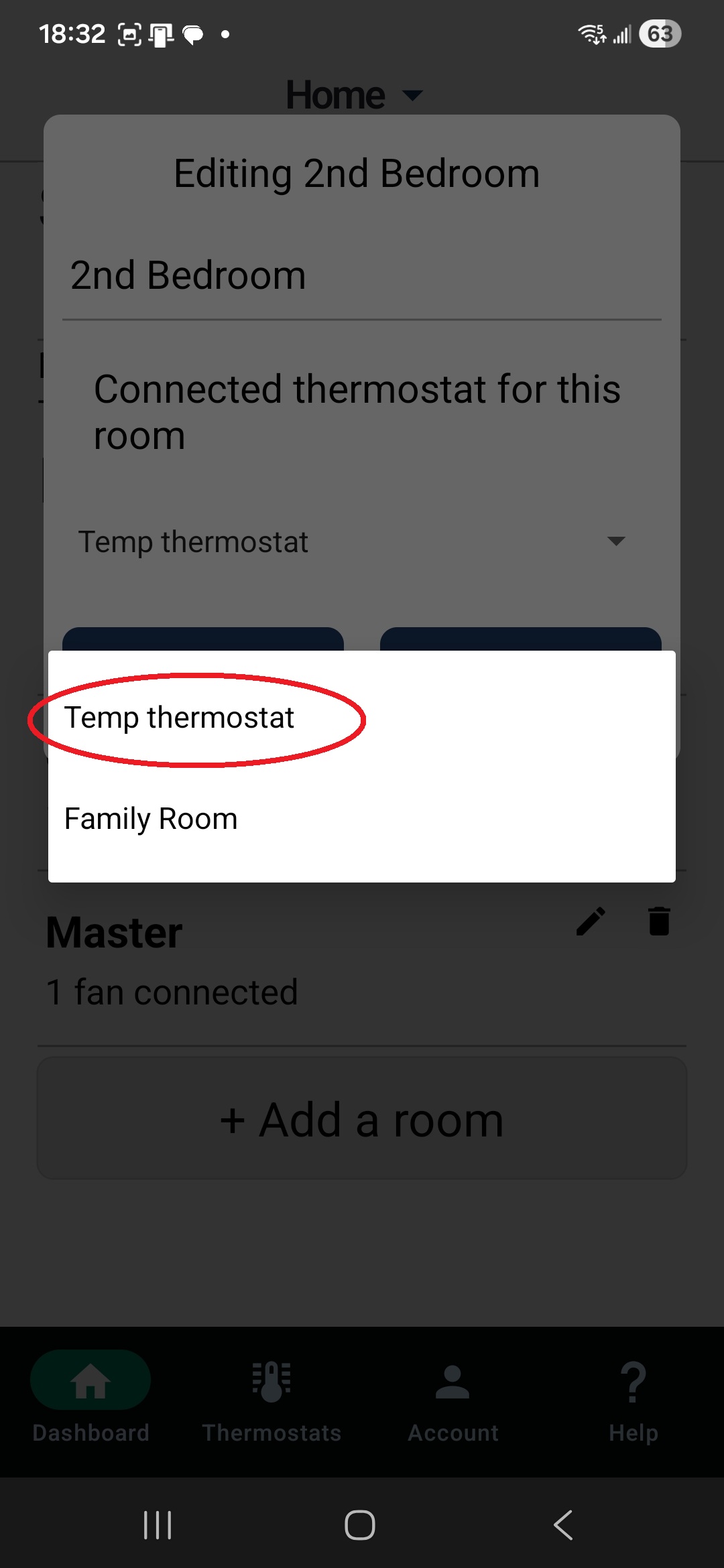
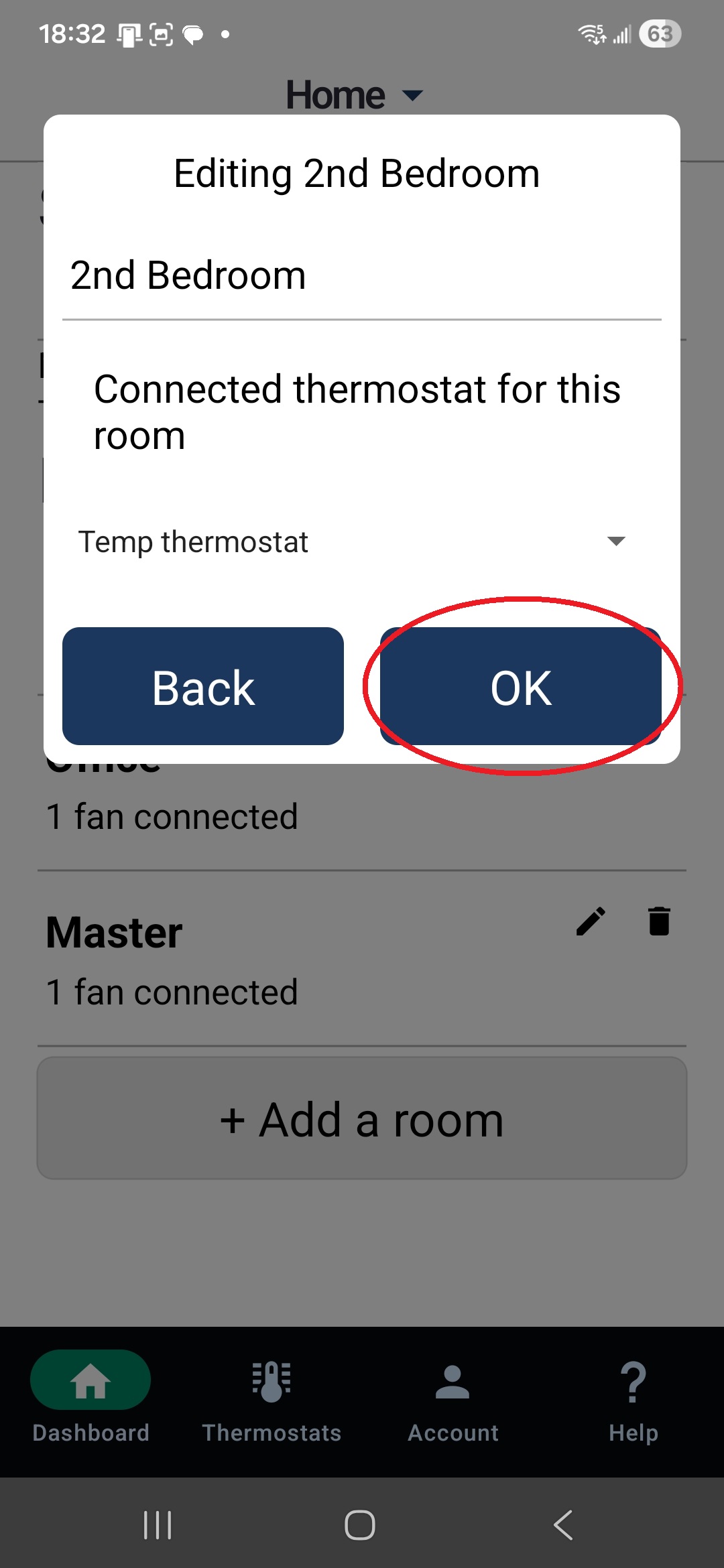
Once this is complete, click on each room, select the thermostat, and confirm that the room is now connected to the temporary thermostat you created.
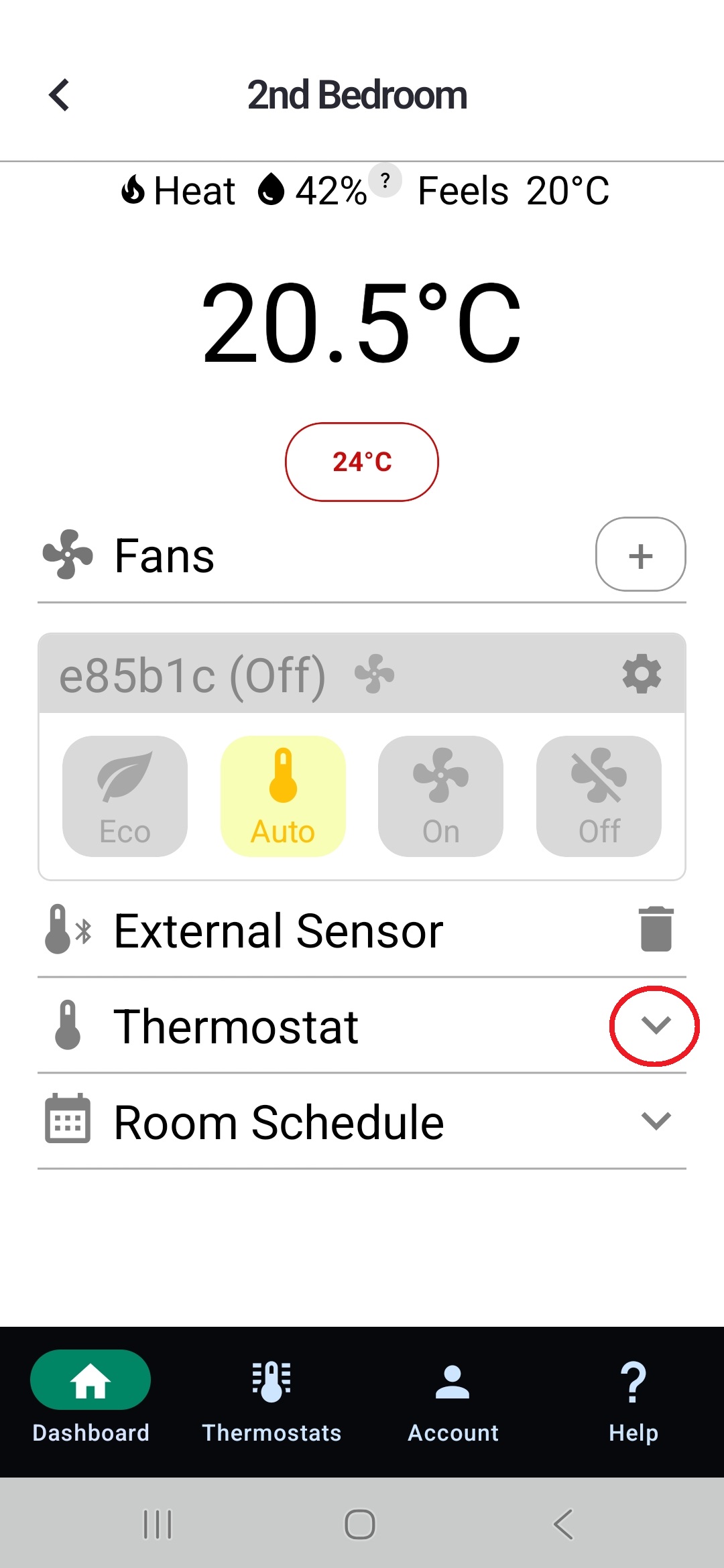
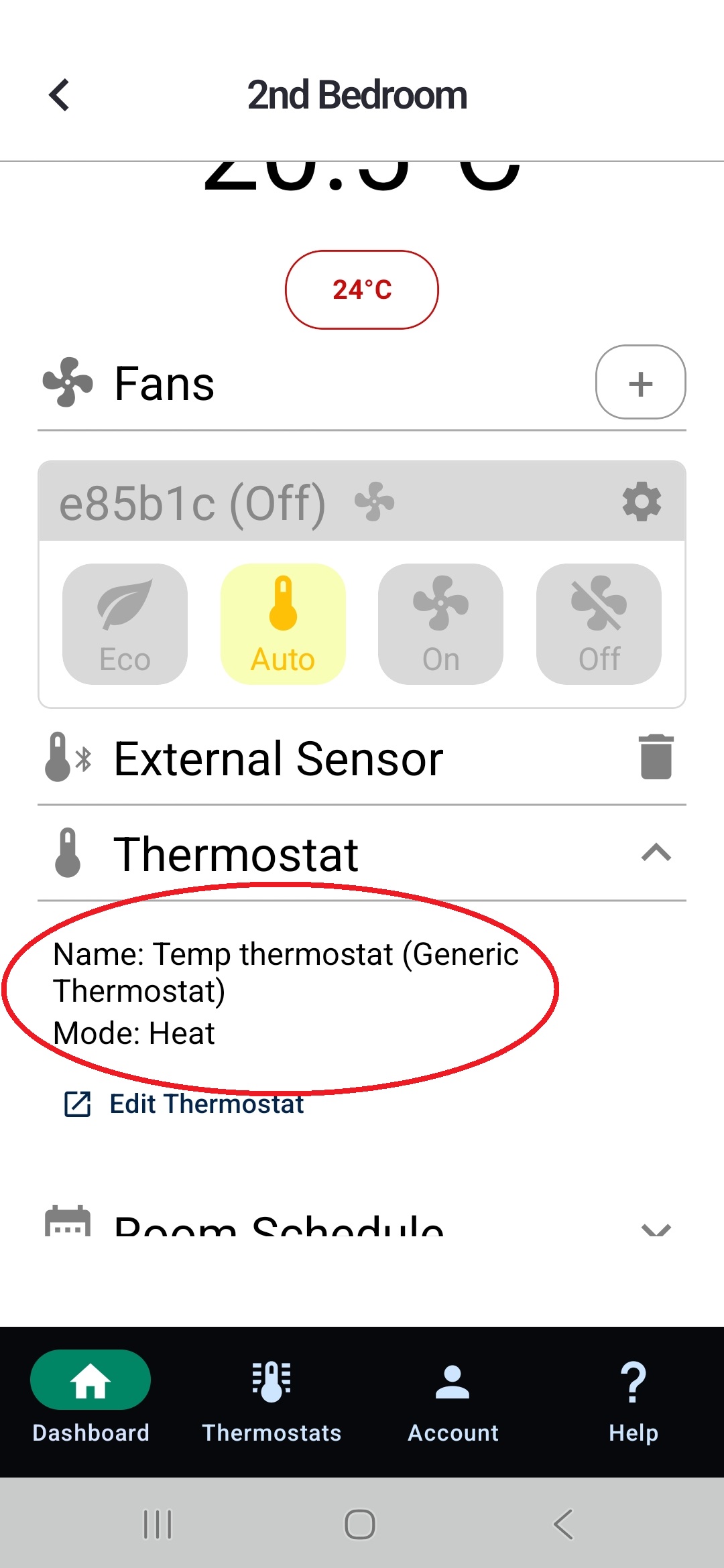
3. Once you’ve confirmed that all rooms are connected to the temporary thermostat, you can proceed to unlink your Nest thermostat.
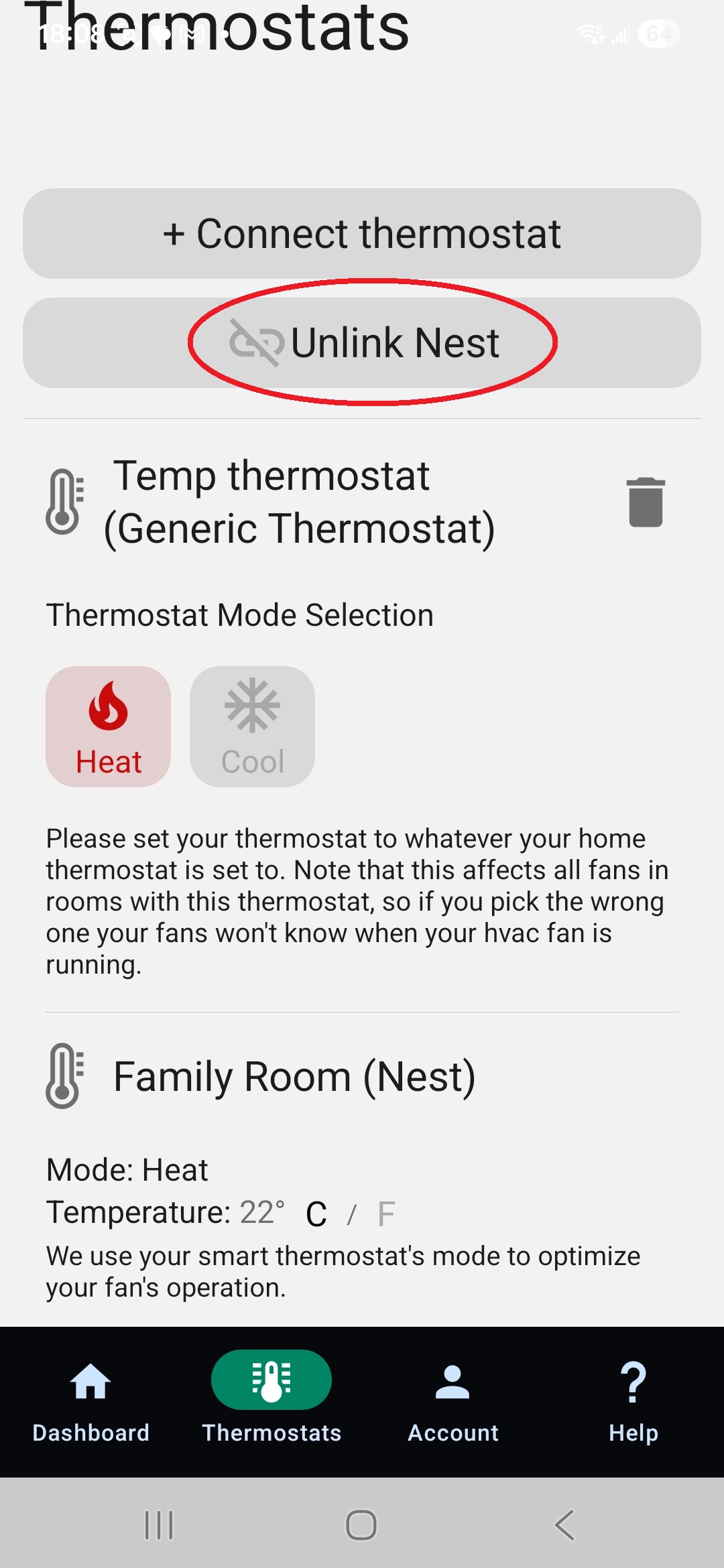
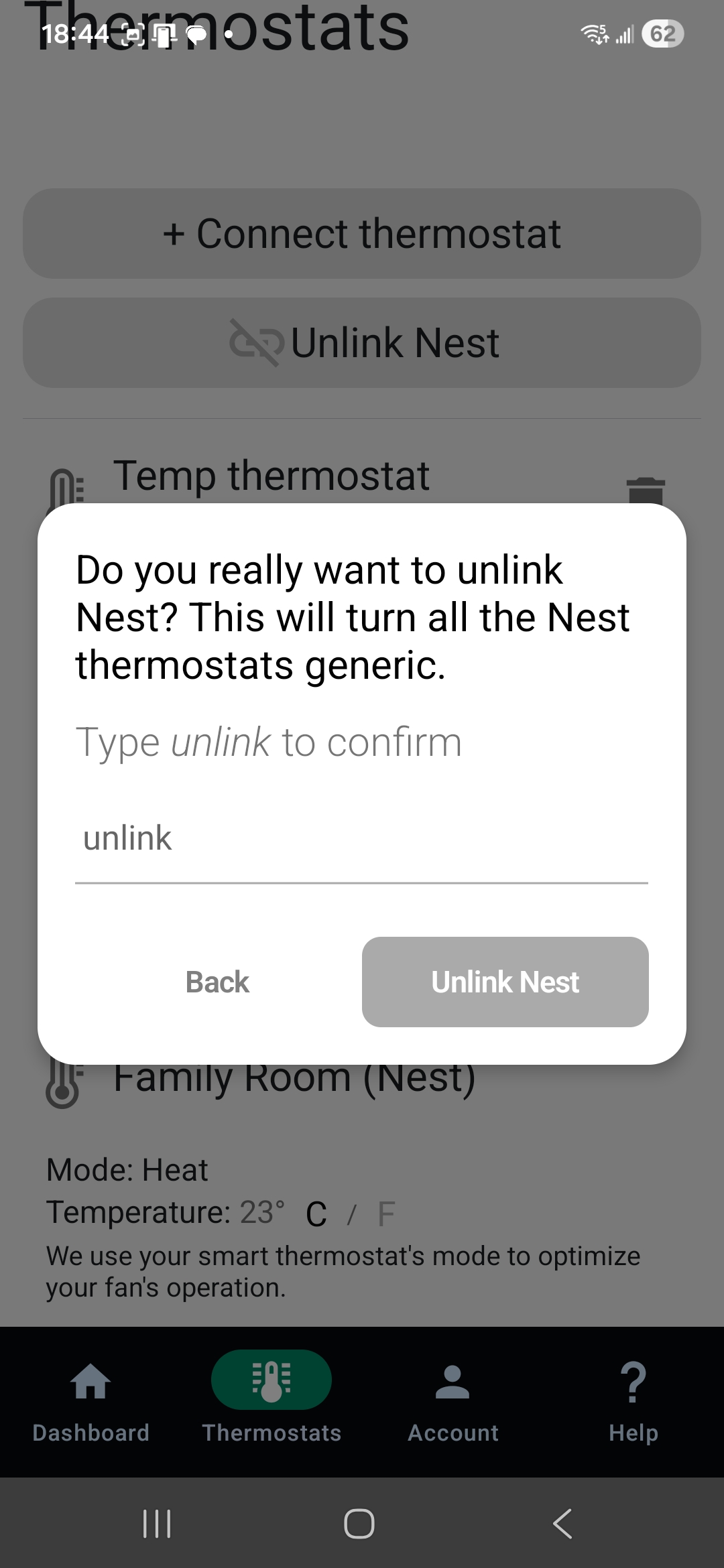
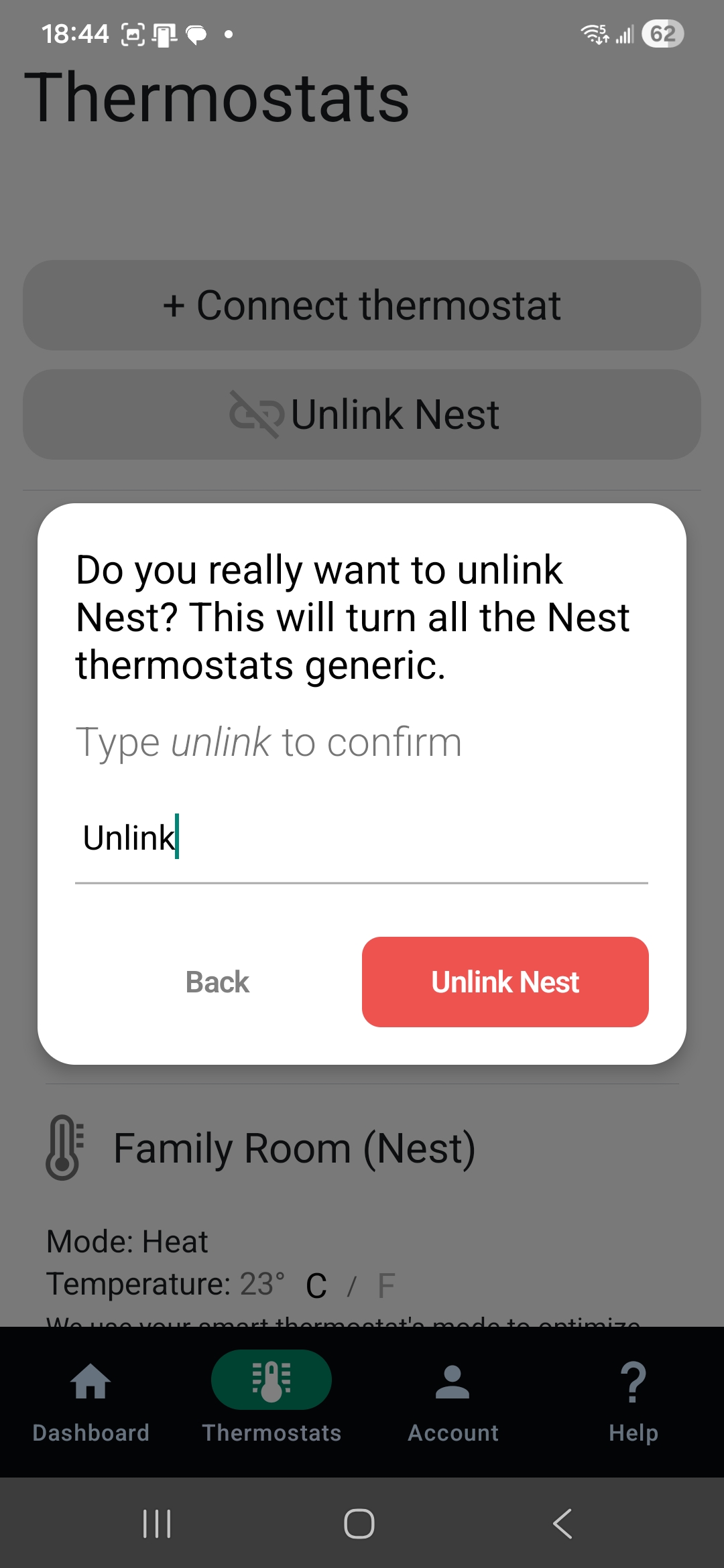
Type "unlink" and click "unlink Nest"
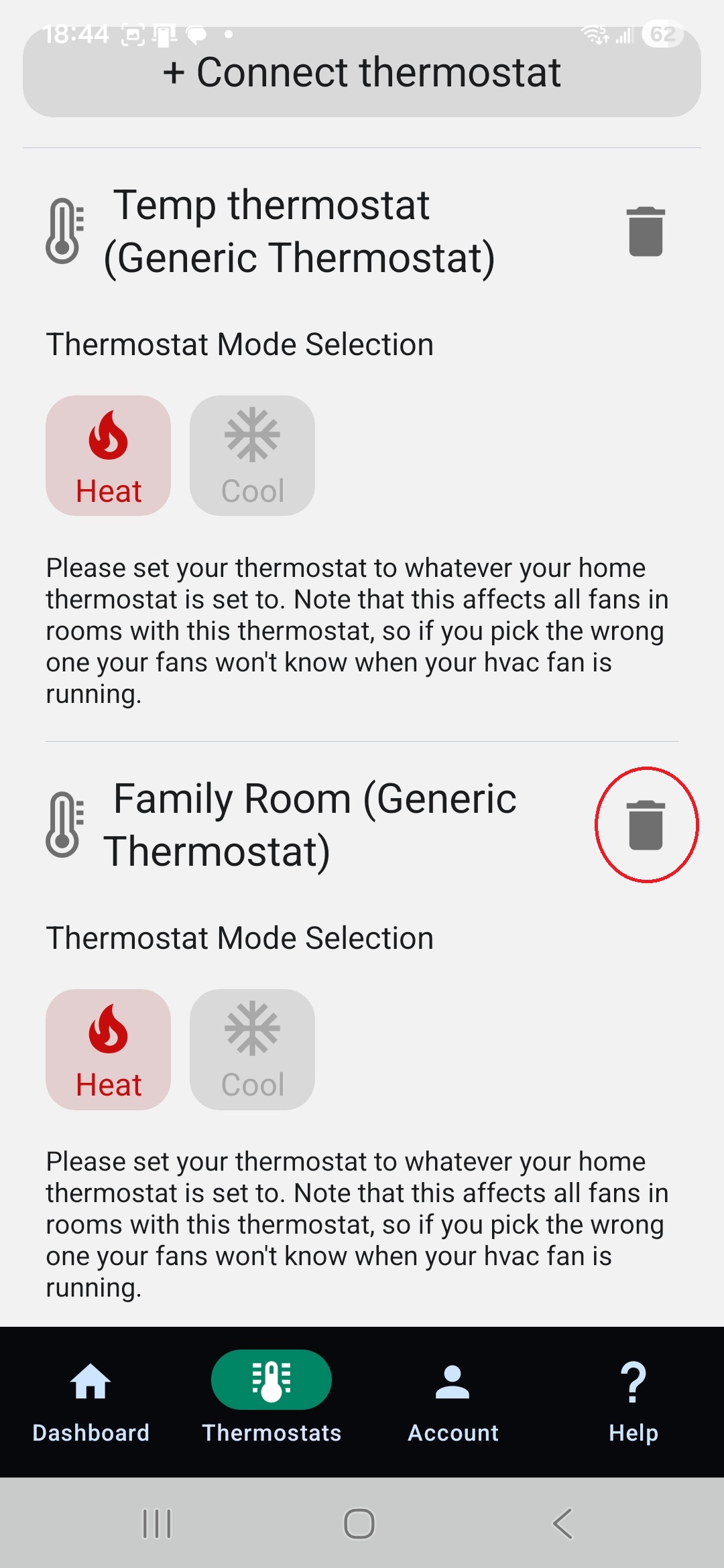
After unlinking, a trash can icon will appear next to the Nest thermostat, allowing you to delete it completely without deleting your fans.
MAKE SURE NOT TO DELETE THE NEW THERMOSTAT YOU CREATED IN THIS CASE "Temp Thermostat"
4. Log out of the SmartCocoon app, then log back in.
5. On the dashboard, tap “Thermostats” and add your Nest thermostat again.
6. Once Nest has been successfully added and you can see its temperature readings, return to the dashboard and reconnect your rooms to Nest by repeating Step 2.
You are all set!